How to manage user profiles on your Mweb Account
How to manage user profiles on your Mweb Account
Learn how to add, edit or manage user profiles on your Mweb Online Account to control access and permissions.
What Are User Profiles?
User Profiles allow you to give other people access to your Mweb account with specific permissions.
You can:
- Add additional users
- Assign different access roles
- Update contact details
- Manage notification preferences
- Change passwords or OTP numbers
Each user acts on your behalf according to the access level you assign.
How to Access User Profiles
- Log in to your Online Account at
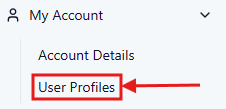
https://my.mweb.co.za - Once logged in, scroll down in the left-hand menu.
- Click User Profiles (bottom left under My Account).
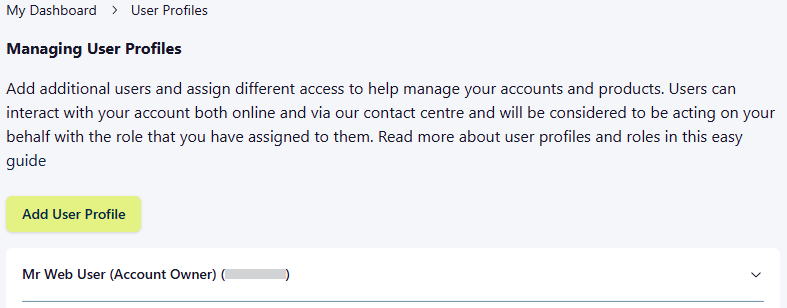
You will now see:
- The Account Owner profile
- Any additional user profiles
- An Add User Profile button
How to Add a New User Profile
- Click Add User Profile
- Complete the required details:
- Personal details
- Contact information
- OTP number
- Email address
- ID details
- Set the Access Level
- Choose notification preferences
- Click Save
The new user will now appear in your profile list.
How to Edit an Existing User Profile
- Go to User Profiles
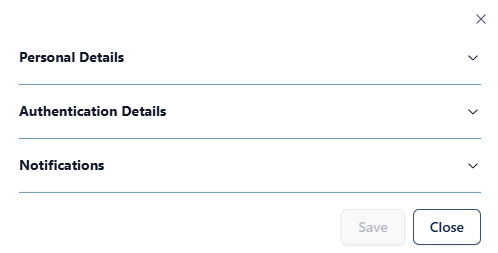
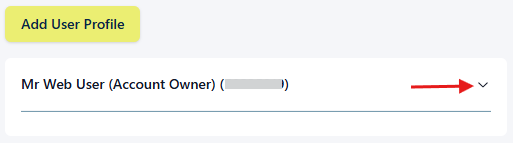
- Click on the profile you want to manage
- Select one of the following options:
Edit Details
Update:
- Name
- Contact numbers
- Email address
- ID details
- Date of birth
Change Password
Update the user’s login password.
Change OTP Number
Update the mobile number used for one-time PIN authentication.

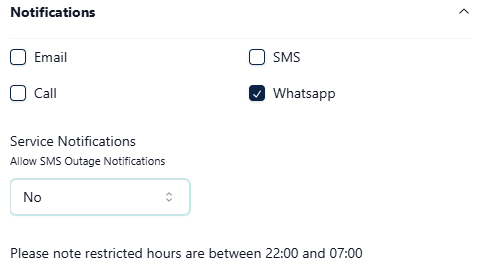
Managing Notifications
Within a user profile, you can control how the user receives notifications:
- SMS
- Call
You can also choose whether to allow SMS outage notifications, including restricted hours.
Access Roles Explained
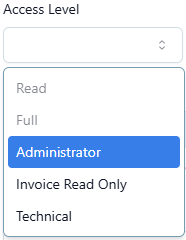
Each profile has an assigned access level. This determines what the user can view or manage on your account.
The Account Owner has full access by default.
Important Notes
- The Account Owner remains fully responsible for all actions performed by additional users.
- OTP verification is required when updating sensitive information.
- Restricted SMS hours apply between 22:00 and 07:00.
©Mweb (Pty) Ltd. All rights reserved.